
Excel is a perfectly good CD calculator — if you know which two formulas to type. This guide builds you a complete CD calculator in a blank spreadsheet in about five minutes: maturity value, interest earned, monthly income, and even a full CD ladder tracker. Every formula works identically in Google Sheets.
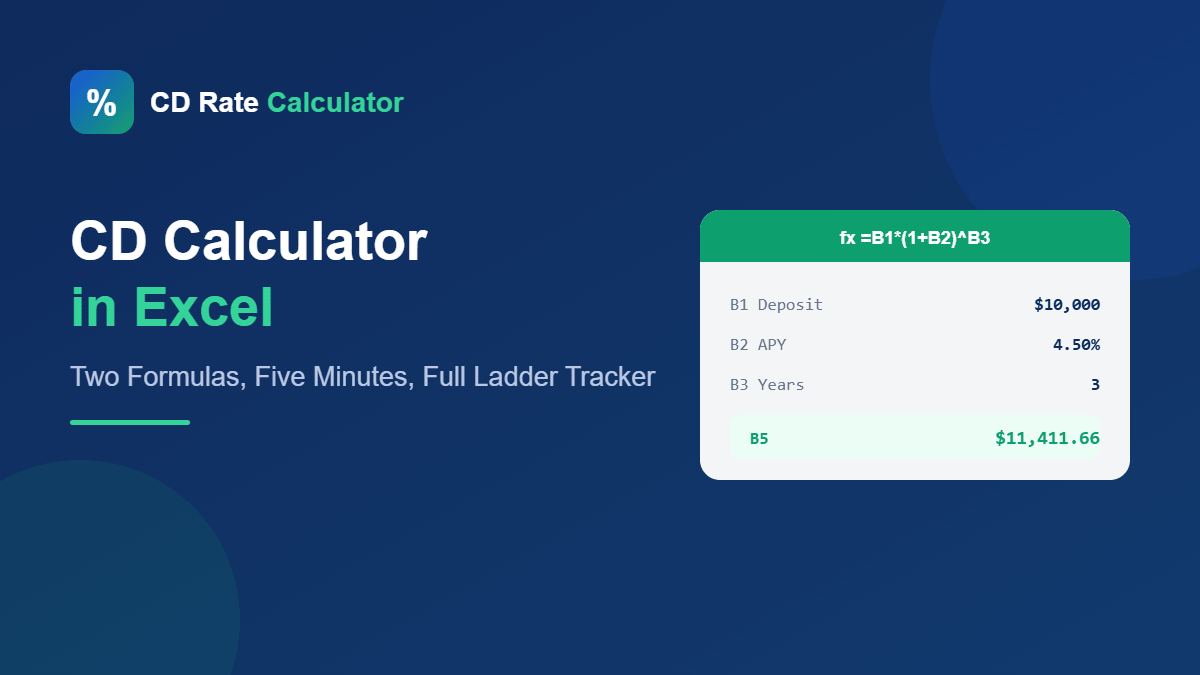
Quick answer: put your deposit in B1, APY in B2 (as 4.5%), and years in B3, then: =B1*(1+B2)^B3 gives your maturity value. Prefer zero setup? Our online CD calculator does it in one click — but the spreadsheet version is worth having for scenarios.
⬇ Download the free CD Calculator Excel template
Level 1: The Basic CD Calculator (One Formula)
Set up three input cells and two formulas:
| Cell | Contents | Example |
|---|---|---|
| B1 | Deposit | 10000 |
| B2 | APY (format as %) | 4.50% |
| B3 | Term in years | 3 |
| B5 | =B1*(1+B2)^B3 | → $11,412 (maturity value) |
| B6 | =B5-B1 | → $1,412 (interest earned) |
Why this works with any compounding: banks quote APY with compounding already included, so the simple exponent gives the exact answer. For months instead of years, use =B1*(1+B2)^(B3/12) with the term in months.
Level 2: Excel’s Built-In FV Function

Excel’s future-value function does the same job with a standard signature:
=FV(B2, B3, 0, -B1)
The arguments are rate, periods, payment (0 — CDs take no monthly deposits), and present value (your deposit, entered negative because it’s money leaving your pocket). The result matches Level 1 to the cent. Use whichever reads better to you; FV becomes more useful when you graduate to products that do take monthly contributions, like the scenarios in our compound interest calculator.
Level 3: A CD Ladder Tracker
The spreadsheet’s real superpower is tracking several CDs at once. Set up columns:
| A: Bank | B: Deposit | C: APY | D: Opened | E: Term (mo) | F: Matures | G: Value at Maturity |
|---|---|---|---|---|---|---|
| Bank A | 4000 | 4.50% | 1/15/2026 | 12 | =EDATE(D2,E2) | =B2*(1+C2)^(E2/12) |
Two formulas do the work: EDATE adds months to the open date to compute the exact maturity date, and the growth formula projects each rung’s value. Add a row per CD, and conditional formatting on column F (highlight dates within 30 days) gives you an automatic maturity-alarm dashboard — the exact discipline our CD ladder guide recommends.
Useful Extras
- Monthly interest income: =B1*((1+B2)^(1/12)-1) — what a payout CD would send you each month.
- After-tax interest: =B6*(1-0.22) for a 22% bracket (interest is ordinary income).
- Compare two offers: duplicate the Level 1 block side by side and subtract — or skip the setup with our CD comparison calculator.
- Rate → APY conversion: got a nominal rate compounded daily? =(1+rate/365)^365-1. (Both directions, no spreadsheet: APY ⇄ APR converter.)
Spreadsheet vs Online Calculator: When to Use Which
The spreadsheet wins for tracking — a living dashboard of every CD you own, with maturity alarms. The online calculator wins for speed and trust — no formula typos, no #VALUE! errors, works on your phone in a bank lobby. Most CD-savvy savers use both: the web tool to evaluate offers in the moment, the sheet to manage the portfolio.
Common Excel CD Mistakes
- Typing the APY as a whole number. 4.5 in a percent-formatted cell is 4.5%; 4.5 in a plain cell is 450%. If your CD shows a $35,000 gain, this is why.
- Using the nominal rate as if it were APY. Convert first (see above) or your result runs slightly low.
- Forgetting the fractional exponent for months. An 18-month CD is ^1.5, not ^18.
- Simple-interest shortcuts. =B1*B2*B3 underestimates any CD longer than a year — it ignores compounding entirely.
FAQ
What’s the Excel formula for CD interest?
=Deposit*(1+APY)^Years – Deposit. For a $10,000 CD at 4.5% for 3 years: $1,412.
Does this work in Google Sheets?
Every formula here — including FV and EDATE — works identically in Google Sheets.
How do I handle a CD with monthly deposits in Excel?
Standard CDs don’t accept monthly deposits — that’s a savings account or add-on CD. For contribution scenarios use =FV(rate/12, months, -contribution, -deposit), or our compound interest calculator which models exactly this.
Why does my spreadsheet differ slightly from my bank’s numbers?
Banks count actual days and round at each compounding step; the APY formula compresses that into one clean calculation. Differences should be pennies — anything bigger usually means a rate-vs-APY mix-up.
Want the answer without the setup? The free CD Rate Calculator runs the same math in one click.